Practice More — User Guide
Everything the app does, in the order you are likely to need it. Each section is short on purpose: read the part you need, ignore the rest. If you are looking for a specific answer, the FAQ at the end covers the questions that come up most.
Getting started
Practice More is a practice room, not a single tool. The metronome and the tuner are what you open every day; scores, play-along, recording, the session planner and the journal are there so that a practice session leaves a trace instead of disappearing.
Three things are worth knowing on day one:
- The metronome logs your practice by itself. Run it for at least a minute and the session is saved to the Journal with its tempo and length. You never have to press "save session".
- Everything you make, you keep. Recordings, scores and backing tracks stay on the device until you delete them explicitly, and every score, chart and take can be exported as a real file.
- One app, four platforms, one layout. iPhone, iPad, Mac and Windows run the same screens. The window reflows; nothing is amputated.
Free vs Pro. The tuner, the metronome (click, subdivisions, accents, tempo trainer, timer, custom click sound) and Settings are free. Drums, Scores, Play Along, Piano, Projects, the Practice Journal, the Session planner, Stats and the custom groove editor are Pro.
The home screen
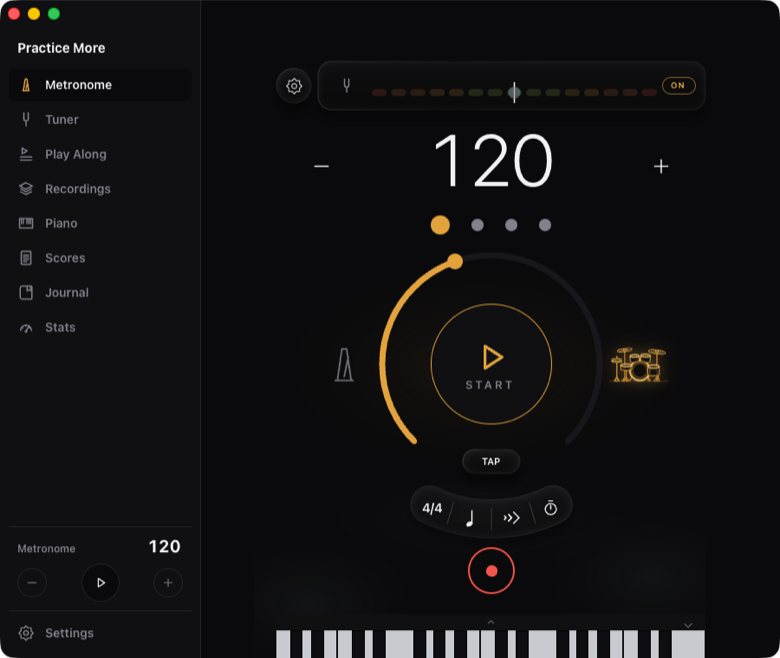
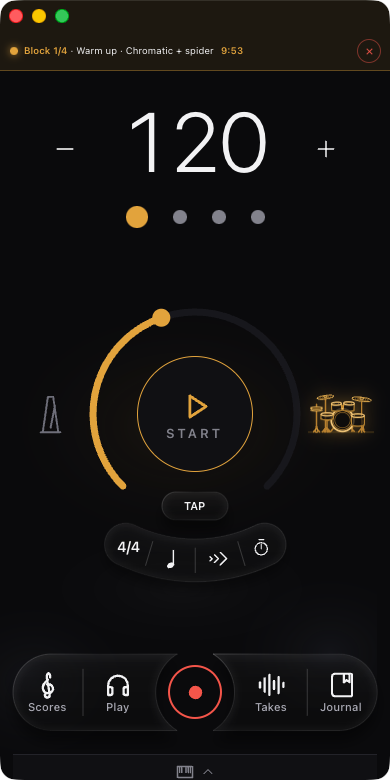
Home is the metronome, and everything else is one tap from it. From the top down:
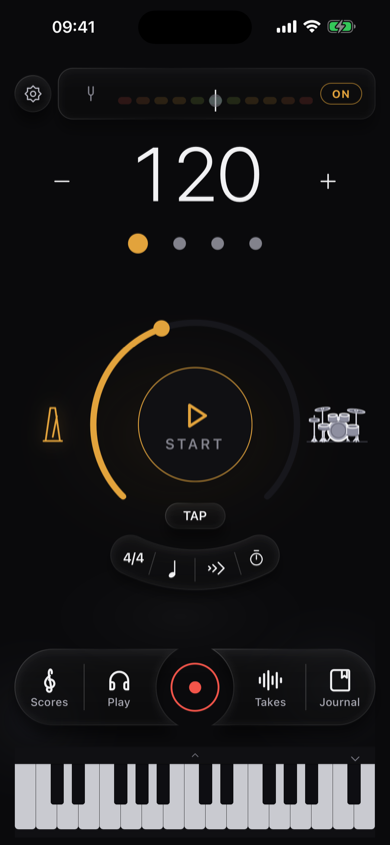
- The tuner strip across the top: a tuning fork when it is quiet, the note name and the deviation in cents when it hears you, and an ON button. Leave it on and it listens while you practise, so you can check a string without leaving the metronome. Tap the strip itself to open the full Tuner. The gear beside it opens Settings, and the percentage in the corner is the practice tempo — see Speed %.
- The tempo, with − and + on either side (hold either one to run), and the beat dots underneath — one dot per beat of the bar, lit in turn while the metronome runs.
- The START ring. The amber arc around it is the tempo dial: drag it to move. The middle reads START, and STOP while it runs. TAP sits just below it.
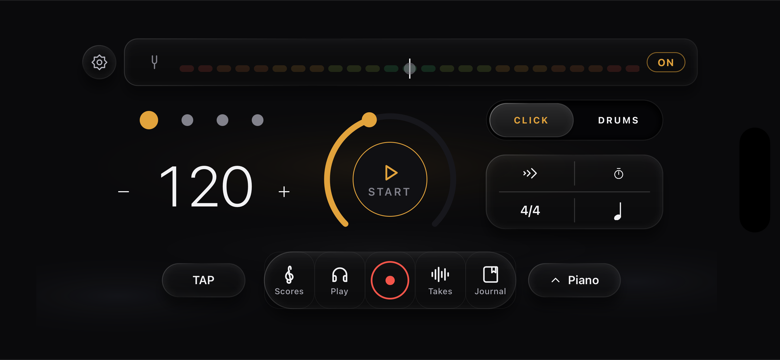
- Click or drums. On a phone-shaped window the two icons flanking the ring — a metronome on the left, a drum kit on the right — switch between the plain click and the band; tapping the kit also opens the Drums panel. In a wide window they become a CLICK | DRUMS switch.
- The arc row, the curved band under the ring: 4/4 (time signature) · ♩ (subdivision) · ≫ (tempo trainer) · ⏱ (timer). Tap a symbol to open its panel. A symbol glows amber when its feature is armed, and the timer cell stretches out into a live countdown while a timed round runs — so you can see what is switched on without opening anything.
- The nav pill at the bottom: Scores · Play · REC · Takes · Journal, with the red REC ring raised in the middle. REC records straight away, wherever you are.
- The piano dock under it — see Piano.
Landscape
Turn the phone and nothing is dropped: the tuner strip goes full width, tempo and START sit side by side, the four arc-row chips become a small grid, and the nav pill stays under your thumbs.
Resizable windows — iPad and Mac
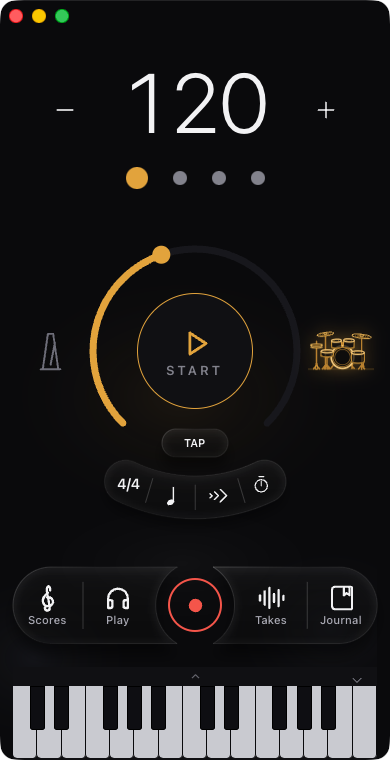
On iPad the app is a full Stage Manager citizen: drag the window to any size and the layout re-flows live, cross-fading rather than jumping at the moment it changes shape. Narrow and tall, you get the phone column. Wide and short, you get the landscape layout. Roughly square, you get a layout made for that shape. Shrink an iPad window right down — Split View, Slide Over, a small Stage Manager tile — and the app simply becomes the iPhone, which is a layout it has always had.
On Mac the same thing happens, at a size that suits a desktop. A sticky rail on the left is the navigation — Metronome, Tuner, Play Along, Recordings, Piano, Scores, Journal, Stats and Settings, always one click away, or ⌘1–⌘8 from the keyboard — with a small metronome transport at its foot so you can start and stop from anywhere. The rail replaces the nav pill; the red REC ring stays in the main column, because REC is the one thing the rail doesn't carry. On the Mac the whole interface is scaled down — type, spacing and icons together, never one without the others — so the app reads as a desktop tool instead of a blown-up phone.
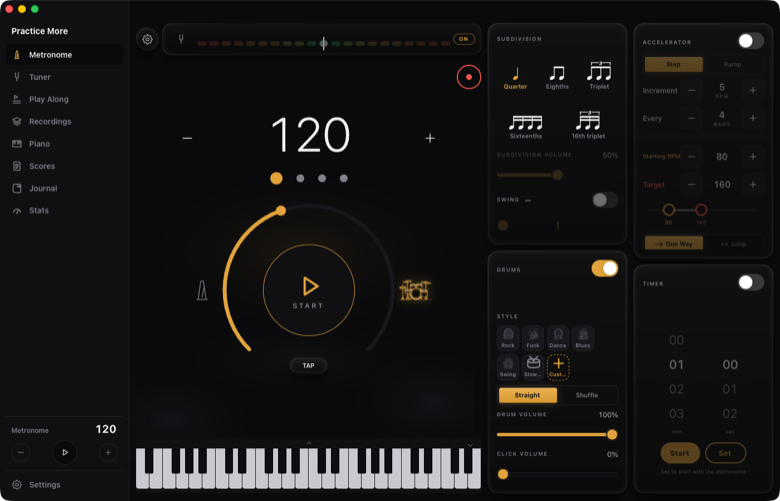
There are four sizes, and they hand over without a jolt:
| window | what you get |
|---|---|
| Widest | rail on the left, panels on the right in two columns |
| Medium | rail, panels in one column |
| Narrow | rail, no panel — the arc row takes its place |
| Phone shape | no rail — the nav pill and the arc row, exactly as on iPhone |
A phone-shaped window is the floor: below that the controls would stop being usable, so the window settles into portrait or landscape rather than shrinking past it. Make the window short and the tuner strip is the first thing to go — the Tuner keeps its place in the rail.
Metronome
The dial
The big number is the tempo. Drag around the ring to change it, use − and + for one BPM at a time, and tap the number to type an exact value. The range is 1 to 300 BPM (the ring itself moves in whole BPM; typed and stepped values can be finer).
TAP sets the tempo by feel: tap it in time at least twice and the app averages your last taps (up to five). Stop tapping for two seconds and the next tap starts a fresh count.
START / STOP does what it says. While it runs, the beat dots above the ring light up one per beat.
Time signature
The 4/4 chip on the arc row opens the meter. Pick a preset or set beats and note value yourself. The app is not limited to common meters: 5/4, 7/8, 12/8 and stranger things all work, and everything meter-dependent — the accent pattern, the count-in and the drum groove — reshapes itself to the new meter instead of breaking.
Subdivisions
The ♩ chip sets what you hear between the beats:
| Setting | You hear |
|---|---|
| Quarter | just the beat |
| Eighths | beat + one tick halfway |
| Triplet | beat + two ticks, triplet feel |
| Sixteenths | beat + three ticks |
| 16th triplet | beat + five ticks |
Subdivision volume is separate from the main click, so you can keep the beat clear and the subdivisions quiet underneath — which is usually what you want.
Swing
Swing delays the off-beats. It applies to eighths and sixteenths; the triplet subdivision is already swung by definition, so the app tells you to switch to eighths or sixteenths if you try to swing it. The amount is continuous: nudge it a little for a lazy feel, push it to the end for a full triplet shuffle.
Accents — how they actually work
This is the part nobody explains, so here it is in full.
Each beat of the bar has an accent level, and the beat dots under the tempo are the control: tap a dot to cycle its level.
| Level | Dot | What you hear |
|---|---|---|
| 0 | empty outline | silence — the beat is muted |
| 1 | small | the normal click |
| 2 | medium | an accented click |
| 3 | tall / full | the strongest click |
Tapping cycles up: 1 → 2 → 3 → 0 → 1… So tapping a beat "to accent it" accents it; keep tapping and it eventually goes silent, which is the point — see below. Tapping any dot also switches accents on automatically.
By default beat 1 is level 3 and every other beat is level 1: the ordinary "ONE two three four".
Turning Accents off in the settings panel ignores your pattern and plays a plain click, with the downbeat marked. Your pattern is not lost — turn accents back on and it returns.
Three things this is good for:
- Odd meters. In 7/8, accent 1 and 5 (or wherever the tune groups) and the bar suddenly reads as 2+2+3 instead of a blur of sevens.
- Practising the internal pulse. Mute beats 2 and 4 (level 0): you keep the tempo reference on 1 and 3 while your own time has to hold the rest. Mute more beats as it gets easy — this is the cheapest time-feel exercise there is.
- Backbeat work. Level 3 on 2 and 4, level 1 on 1 and 3.
When a beat is muted the app shows a small "a beat is muted (your accents)" note, so a silent beat is never mistaken for a bug.
Speed %
The percentage in the top corner of Home — Practice tempo — plays at a fraction of the tempo on the dial. The dial keeps showing the piece's real tempo, which is the point: when the target is 120 and you are working at 70% of it, you read both numbers at once. Tap the value to type an exact percentage.
Count-in
One bar before the click (or the drums) starts, in Voice (spoken numbers) or Sticks (drummer stick clicks). Long meters are counted the way they read: 7/8 comes out as "1 2 3 4 1 2 3".
Click sound
Settings → Metronome sound: Click, Wood, Main, Digital, Hi-hat, Kick, Sticks — plus your own. Tapping ▶ in that sheet previews the sound at 120 BPM without touching the transport.
Custom click. Upload your sample records a short hit with the microphone or imports a WAV/MP3, then you trim it on the waveform so the sound starts exactly on the attack (up to 2 seconds). The trimmed file becomes the click. If the metronome is running when you start recording, the app stops it first — otherwise the click would be recorded into your own sample.
Timer
The ⏱ chip counts down and stops the metronome when it reaches zero. Press Set to arm it instead of starting it immediately: armed, it waits and starts together with the metronome, so a 20-minute block begins when you actually begin playing.
Tempo trainer (Accelerator)
The ≫ chip. Two modes:
- Step — start at a tempo and add N BPM every N bars, up to a target. The classic way to take a lick from 80 to 120 without noticing.
- Ramp — glide continuously from start to target over a number of seconds.
One Way stops at the target; Loop turns around and comes back down, so you cycle between the two tempos indefinitely. Increment bell rings on the downbeat where the tempo changed, so you hear that you moved up without watching the screen.
The trainer starts from the tempo on the dial, and it never snaps: if you change a setting while it runs, it re-anchors to the tempo playing right now instead of jumping back to the start.
What gets logged
Run the metronome for at least 60 seconds and the session is written to the Journal — length, tempo reached, and the song it was attached to, if any. Under a minute, nothing is saved (so a quick tempo check doesn't pollute your history).
Drums
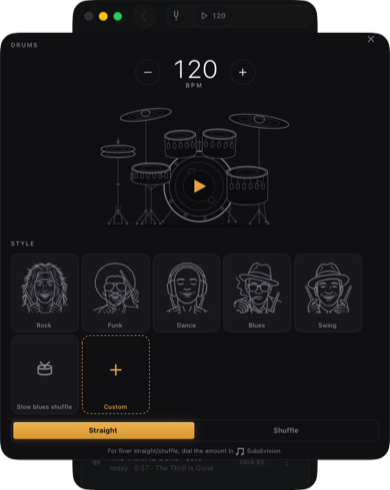
Drums replace the click with a real kit playing a groove, at the same tempo, with the same start/stop. Samples are a real kit, recorded and balanced hit by hit. Switch to them with the drum kit icon to the right of the START ring — or the DRUMS side of the switch, in a wide window.
Styles
| Groove | What it plays |
|---|---|
| Rock | straight eighths |
| Funk | sixteenth-note funk |
| Dance | four-on-the-floor |
| Blues | a shuffle — this one arrives shuffled |
| Swing | a four-bar jazz ride that resolves across the phrase, shuffled |
| Custom | your own, see below |
Straight / Shuffle sets the feel. It means something in simple meters (x/4 and x/2); in /8 and /16 meters the pulse is the eighth, so the presets there stay straight. Each groove knows which note value it swings — Rock swings its eighths, the sixteenth-note grooves swing their sixteenths — so "Shuffle" always does the musically right thing rather than a blanket delay.
Change the time signature and the groove regenerates for the new meter, following the way that meter is normally grouped (5/4 as 3+2, 7/8 as 2+2+3, 12/8 as four dotted pulses…). You don't get a broken 4/4 pattern squeezed into 7 beats.
Drum volume vs click volume
Two separate faders:
- Drum volume — the kit.
- Click volume — the metronome click mixed under the kit. It starts at 0%, which is what most people want (kit only). If you want the click and the kit together — and this is also the only way to hear subdivisions while the drums play — raise this fader.
Custom grooves
The groove editor is a grid: lanes for kick, snare and hi-hat, one column per step. Tap a cell to cycle it: off → normal → accent → ghost. Save it with a name and it appears next to the built-in styles; long-press a custom groove to edit it again.
The hi-hat sound is chosen for you by context — the hat that lands with a kick, with a snare, on an off-beat sixteenth and on its own are four different samples. You place the hits; the app picks the right timbre.
Tuner
The tuner lives in the strip across the top of Home. Tap ON and it listens; the meter shows the note name, the deviation in cents and the frequency, with the last ten cents on either side of centre magnified so the final nudge is readable. Tap the strip to open it full screen for the large strobe. The display dims when the signal is unclear, so you can tell "this reading is solid" from "I'm reading room noise".
While the metronome runs the strip goes to standby. A click every half second would throw the meter around; stop the metronome, or open the full Tuner, and it listens again.
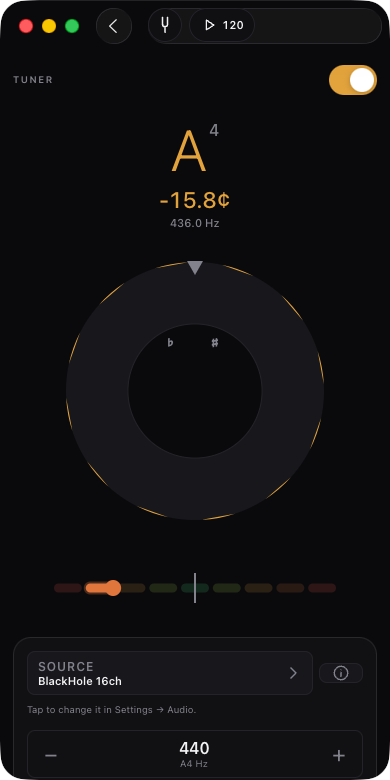
- A4 reference is adjustable from 415 to 466 Hz — 440 standard, 432 if you prefer, and everything in between for playing with old instruments or recordings.
- Source: the app auto-detects connected inputs. The built-in mic is fine for everyday tuning but hears the room; for the tightest, sub-cent accuracy plug in an interface or a wired input and select it.
The tuner is deliberately honest with piano and other inharmonic instruments: the pitch is refined against the true fundamental instead of being pulled sharp by the stretched upper partials.
Scores
Your sheet music lives here, and the metronome is always in the pane next to it — the point is to read and play in time, not to switch apps.
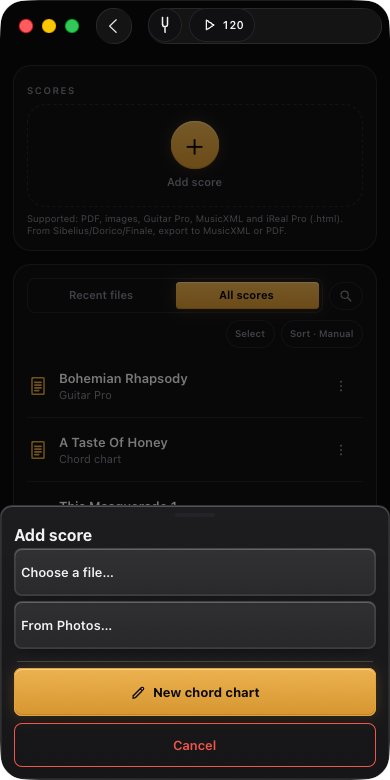
What you can import: PDF, images (or a photo taken on the spot), Guitar Pro, MusicXML and iReal Pro charts. An iReal file that contains a whole playlist opens as a list, and you pick the song to import. Sibelius (.sib) and Dorico (.dorico) are closed formats no app can open — export MusicXML or PDF from those programs and import that.
Playing a score back
Guitar Pro and MusicXML scores play back with the cursor following the music:
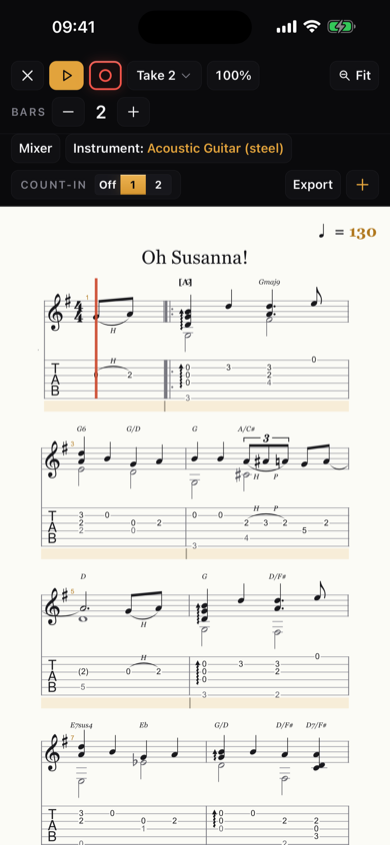
- Tracks and Mixer — every track of the file with M/S (mute/solo) and a fader, plus an instrument override if the file's sound is wrong. Play a duet part alone, mute the melody and play it yourself.
- Tempo — play back at a percentage of the written tempo; the header shows both the original ♩ and what you are actually hearing.
- Key — transpose the chart.
- Bars — how many bars are on screen at once, and Fit to size the page to the window.
- Count-in — Off, 1 or 2 bars before playback and before recording.
- Tap to seek, drag to loop. Tap a bar to jump there; drag across bars to set a loop and tap outside it to clear.
Recording on a score
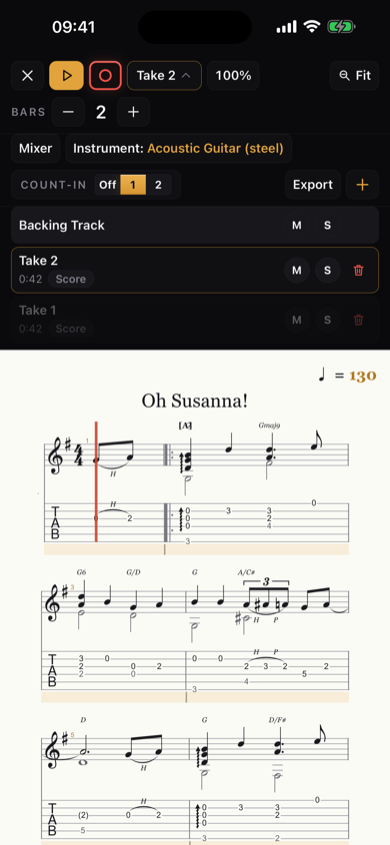
The red ring in the score toolbar records you against the score's own playback. Each pass is a take, picked from the Take menu in the toolbar, and every take keeps its own volume in the mixer — so you can stack a rhythm pass and a melody pass and balance them against the band.
Exporting a score
Export in the score toolbar turns what is on screen into a file you can send.
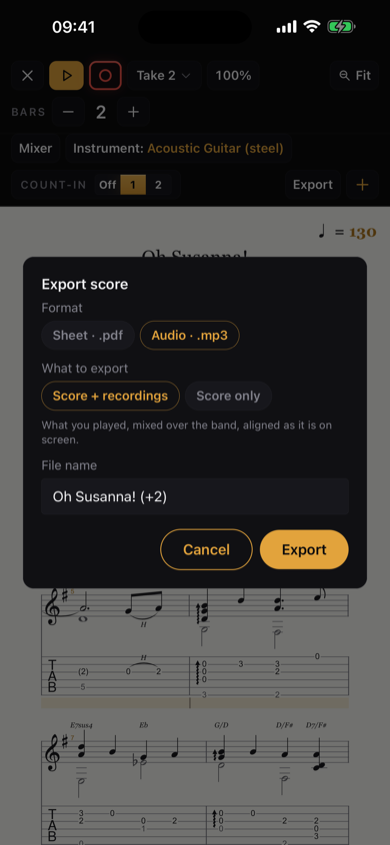
- Format — Sheet · .pdf (the page on paper, with a preview before it leaves) or Audio · .mp3.
- What to export — if you have recorded takes on this score, you choose Score + recordings or Score only. Score + recordings is exactly what you hear in the app: what you played, mixed over the band, aligned as it is on screen. With no takes on the score the question isn't asked — you simply get the score.
- File name — proposed for you and editable. When takes are included the name carries the count, so
fade-to-black (+1)is the score with one take on top.
Mute, solo and the mixer faders are respected: what you hear is what comes out, and each take lands sample-exactly where you played it — a take that starts at bar 9 arrives at bar 9, with its own count-in kept in case there's a pickup note in it. The score's count-in chip (Off / 1 / 2 bars) is honoured too. The app shows you where the render is — Playing the score…, then Writing the file… — and hands you the system save panel at the end, the same one the chart and play-along exports use.
The renderer will take a score up to 40 minutes long. It also tells you plainly when it can't proceed: the sounds are still loading, or there is nothing to render — everything is muted.
Chord charts and the arranger
An iReal Pro chart imports as a chart you can read and hear: the app builds an arrangement from the chord symbols — bass, keys and drums in the Style you pick — and plays it while the chart scrolls.
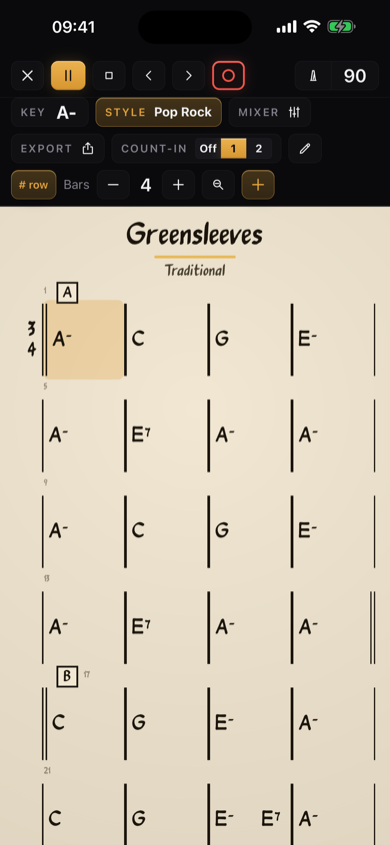
- Style picks the band: Pop Rock, Medium Swing, Bossa Nova, Shuffle blues, Rock 12/8, Soul, Funk, R&B, Reggae, Latin — or Piano only for comping and nothing else. A style that doesn't exist in your meter says so rather than playing something wrong.
- Feel — Auto, Straight or Swing. Chord extensions can be turned off per chart if you want the chords exactly as written instead of coloured with 9ths and 13ths.
- Mixer — Piano, Bass and Drums, each with mute, solo, level and pan, plus a Recording strip that appears the moment the chart has a take. Everything is live: a fader moved while the band plays is heard on the same beat.
- Cycle loops a section while you work on it, and you can record over the chart the same way you record over a score.
- The editor lets you fix a chord, a bar or the form without leaving the app.
Export chart gives you three formats:
- iReal · .html — the chart itself, in iReal Pro's own format, so it opens in iReal.
- Sheet · .pdf — the chart on paper; you see the pages before it leaves.
- Audio · .mp3 — the arrangement, bounced with your Style, tempo, mixer balance and count-in. Choruses sets how many times round the form (1 to 12; if the chart has a recording on it, the app pre-sets enough choruses to cover your take). What to export: Band + recordings (what you played, mixed over the band) or Band only. A piano-only chart has no band to render — pick a Style first.
Play Along
This is the room where you practise against a recording: load a backing track, slow it down, loop the hard bars, mute the instrument you want to play, and record yourself on top.
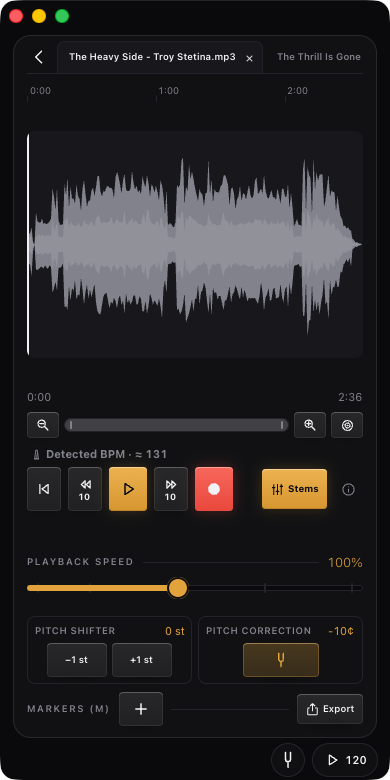
Loading a backing. An audio file, one of your recordings, a project backing track, or the audio extracted from a video — the app pulls the soundtrack out for you. Supported audio is WAV, AIFF, MP3, M4A/AAC and ALAC.
Tempo detection. The app estimates the track's tempo and offers it as the metronome BPM in one tap. Free-time or rubato material reads unreliably and the app says so instead of pretending.
Speed — 20% to 200%, pitch preserved. Pitch — ±12 semitones, plus fine micro-tuning in cents for tracks that aren't at A=440; Detect & fix to 440 measures the recording and corrects it for you.
Markers and loops. Drop labelled markers on the waveform, drag across the waveform to set a loop, tap outside to clear it.
Stems
Split into stems separates the backing into its parts — drums, bass, vocals and everything else — right on your device. Nothing is uploaded. The first split downloads the separation model once (~84 MB); after that it works offline. One song at a time.
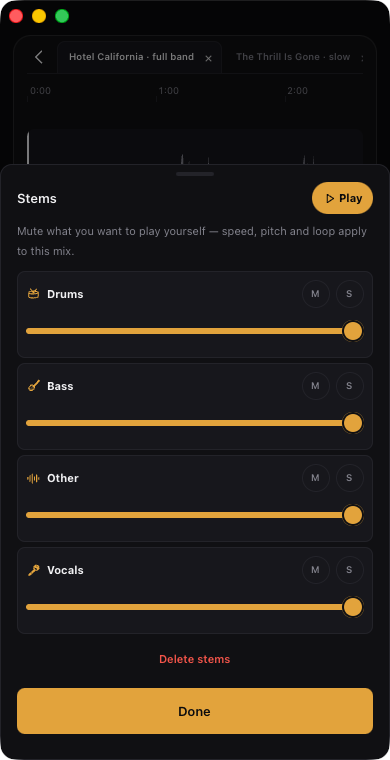
Once split, the mixer lets you mute what you want to play yourself: kill the guitar and play the guitar part, or keep only drums and bass and be the whole front line. Speed, pitch and loop apply to the stem mix exactly as they do to the full track.
Recording over a backing
What you get depends on how you are listening, and the app tells you which mode you are in:
- Speaker — the microphone captures the backing and your playing together. Stop saves one complete recording.
- Wired headphones — only your instrument is recorded and you get a two-track session lined up with the backing (a real overdub).
- Bluetooth — refused for recording. Bluetooth latency is too high and too variable for anything to line up; use wired headphones or the speaker. A Bluetooth speaker is a different case, and the app can't tell the two apart, so the first time it meets one it asks — speaker or headphones? — and remembers your answer for that device.
Input level is on the same panel: play at the loudest you'll play, and keep the peaks out of the red. Recording from names the microphone in use and lets you change it without leaving the flow; a change applies from the next take.
For click-synced recording, run Calibrate once in Settings (quiet room, speaker on, Bluetooth off): it measures the audio round-trip of your device so takes land exactly on the click.
Exporting the play-along
Export the play-along writes out what you built — your speed, pitch, trims and stem balance baked in — as M4A, MP3, WAV, AIFF or Apple Lossless.
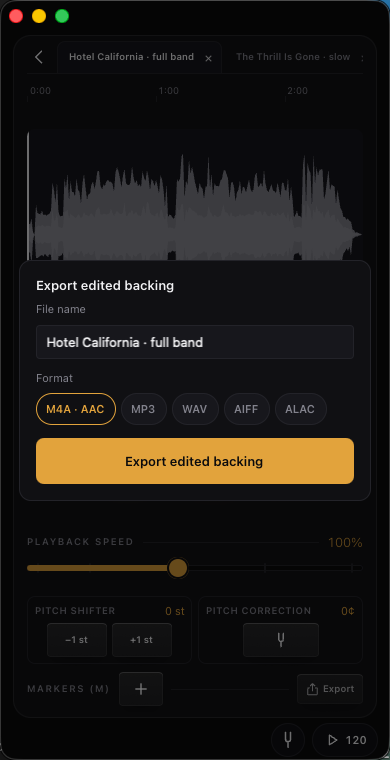
- What to export — Backing + take (the track with your recording on it) or Backing only.
- How much to export — asked only when an A-B cycle is armed: Full track or Loop only, so you can lift just the eight bars you were working on.
- The file name carries what you did to it:
mix,loop,85%,-2st.
Takes, recordings and projects
REC on the nav pill records wherever you are, and Takes is where everything lands.
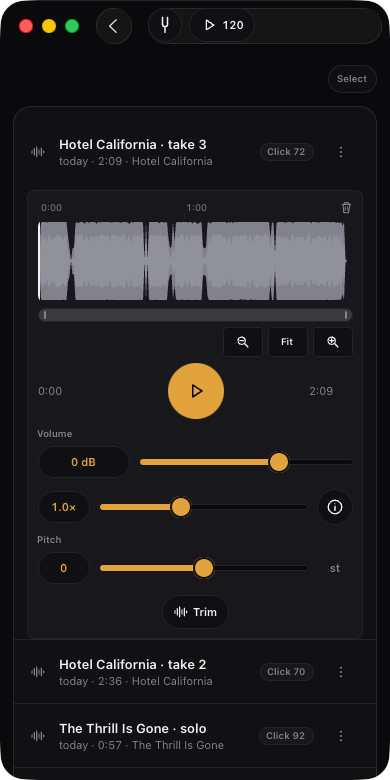
- Every take can be renamed, annotated and played back at 0.5×–1.5× with the pitch preserved, with its own volume, pitch shift and markers.
- A take recorded over a backing or over a score is multitrack: your part and the band are separate tracks, with their own faders, mute and solo, drawn on one shared timeline — the backing neutral, your take in amber — so you can see the alignment as well as hear it. Take sync nudges a take ±5 ms at a time if it needs it, with a Reset.
- Hide recordings takes the take lane off the timeline without deleting anything; the header then says how many takes are hidden, with a Show to bring them back.
- Select several at once and send them out together — the button is Share on iPhone and iPad, Export on Mac, where it opens the system save panel. Anything already in the format you asked for is copied as it is; the rest are converted.
- A Project collects the takes of one idea — plus its scores and its backing tracks. Deleting a project never deletes its takes: they move to Unfiled.
Practice Journal
The Journal is built so that it fills itself. You practise; it records.
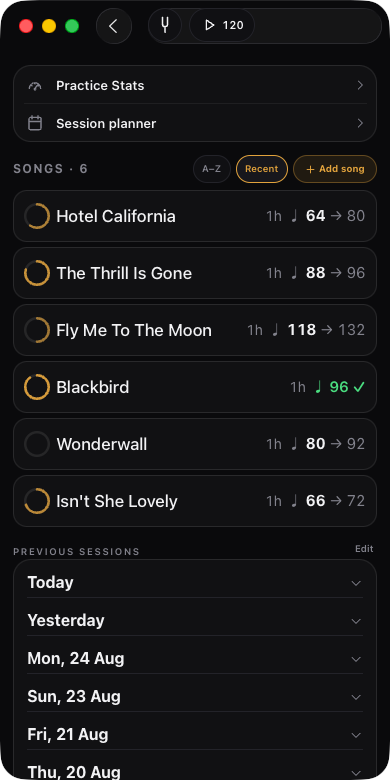
At the top, two doors: Practice Stats and Session planner. Under them, your songs.
Songs
Each song is a row with a progress ring, the last time you touched it, and its tempo written as current → target. The ring fills clockwise across ten levels of study, and its amber deepens as it goes: a piece just started is a hint of a circle, a piece you own is a full closed one. A song with sections shows the average of its parts. Every ring is the same size, so two songs at the same level look the same whatever their titles.
Open one and you get its own page:
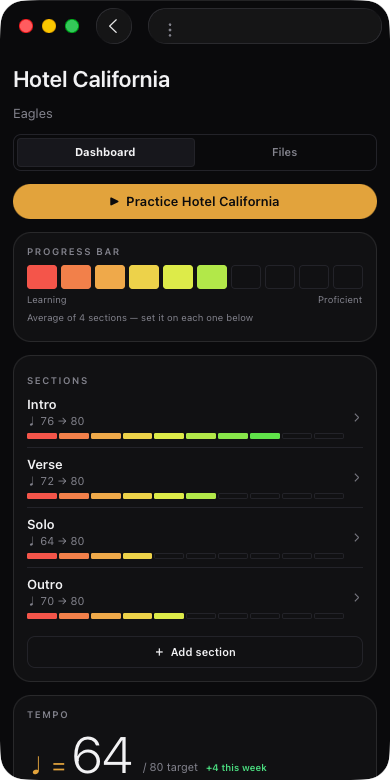
- **Practice song** — starts the metronome at that song's tempo, with the session filed under it.
- Progress bar — from Learning to Proficient, so you can see at a glance where the piece stands.
- Sections — break the piece into the parts you actually work on, and track them separately.
- Tempo — the current BPM against the target, with the percentage you're at, and Save new BPM when you move up.
- Week / Total / Last — the three numbers that matter.
- Diary — a line to yourself about today.
- Files — the scores, charts and backings attached to this song.
Songs you have finished with go to the Archive rather than being deleted.
Sessions
Previous sessions at the bottom of the overview groups every logged session by day, newest first. Tap a day to open it, Edit to correct or remove one. Sessions are written automatically by the metronome and the recorder (60 seconds minimum), with time, length and tempo.
Attach a song to the metronome and every session you run is filed under that song; leave it empty for free practice.
For my lesson
Write down what your teacher assigned, set the lesson day (weekly, every two weeks or one-off) and the app counts down to it.
Session planner
A session plan is your hour, written down before you start, so you don't spend it deciding what to do. Journal → Session planner.
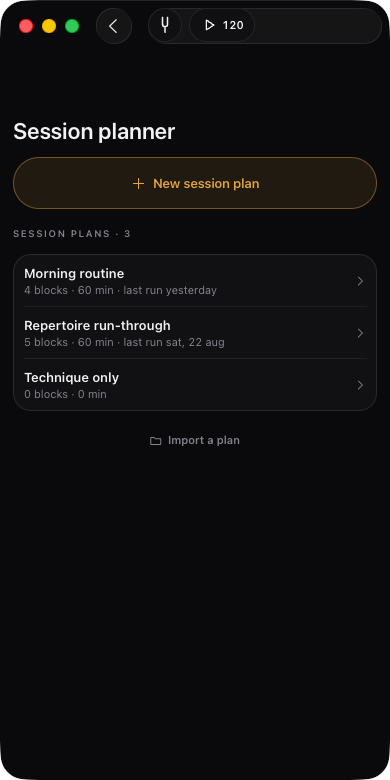
New session plan at the top makes one. Name it, then fill it with blocks.
Blocks
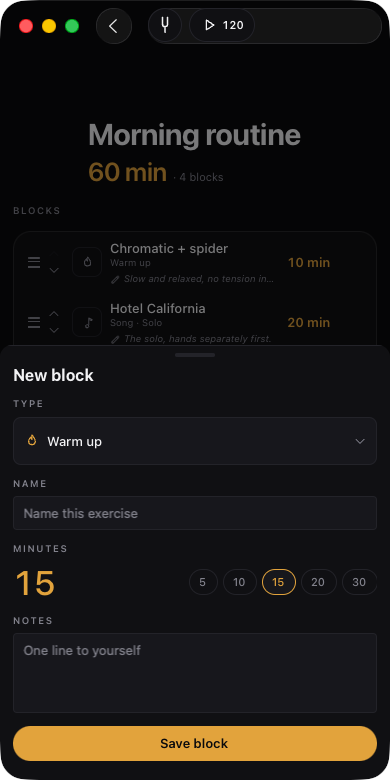
- Type — what kind of work this stretch of time is. Five come with the app: Song, Warm up, Improvisation, Technique, Sight reading, plus Free exercise for anything else. Each has its own icon, so a plan reads at a glance. New type adds one of your own — name it once and it stays in the menu under Your types.
- Song blocks are linked to a song in your Journal: pick the song, then Whole song or one of its Sections. The tempo and click setup come from the section — a block never carries its own BPM.
- Name — the exercise, in your words ("Chromatic + spider", "Right-hand independence").
- Minutes — tap the number for the keypad, or take a preset: 5, 10, 15, 20, 30. Anything from 1 to 240; 15 if you don't say.
- Notes — one line to yourself.
Save block adds it to the list. On a phone, hold and drag to reorder, swipe a block left to remove it; on a desktop, use the arrows and hover a block to remove it. Tap a block to edit it — there is no Save for the plan itself, edits are kept as you make them. The header keeps the running total: 60 min · 3 blocks. A plan holds up to 40 blocks.
Running a plan
Start session puts an amber banner at the top of every screen — Block 1/3 · Warm up · Chromatic + spider · 14:57 — counting the block down while you use the whole app normally. Tap the banner to open the plan, pause it, or close it with the ×. While a plan is running, the piano dock collapses to its handle, so the banner costs you nothing on screen.
Nothing advances by itself. When a block's time is up the banner says Block done and offers the next one — Next: Right-hand independence · 30 min — so you finish the phrase you are on instead of being cut off. +5 min extends the block you're in. Next logs the minutes you did and moves on; Skip drops the block. On the last one it says Finish session, and End and Save closes a session early at any point.
The recap
When the plan ends you get Session complete: how many blocks of how many, over how long, all of it already in your journal. Two optional touches before you close it — Move the needle? to update the tempo of the songs you worked on, and How did it go?, one line saved straight to that song's diary.
Export a plan to send it to a student and Import a plan to take one in — plans travel as .pmplan files. If a plan arrives naming songs that aren't in your journal, those blocks come in as free practice rather than being dropped, and the app tells you which ones. Plans are reusable: the list shows last run for each one.
Stats
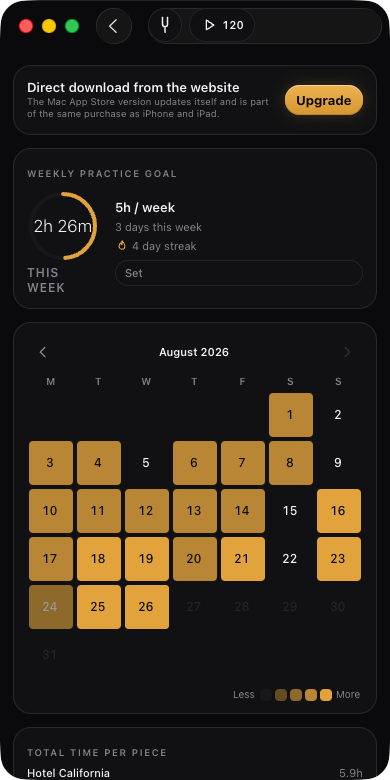
- Weekly practice goal — a ring showing the minutes you have practised this week against your target, and the days you have hit. Set it here or in Settings.
- A month at a glance — a calendar where each day is shaded by how much you practised, Less to More. Page back through the months to see the habit form.
- Per piece — total time per piece, how your pieces are distributed across study phases, and the BPM trend: each piece's progress toward its target tempo over time, for your three most-practised songs.
Piano
A full keyboard with note names (♯ or ♭ spelling, your choice), Grand and Electric Piano sounds, and the same A4 reference as the tuner. Above the keys, a staff writes down what you play so you can see the chord you just found.
A USB or Bluetooth MIDI keyboard connected to the device plays this piano from anywhere in the app.
On Home, the keyboard docked at the bottom is the same instrument in miniature — it is there, not hidden in a drawer. Tap a key for a quick reference pitch, swipe up or use its centre chevron to escalate to the full Piano, or fold it away with the ▾ at its right edge. Folded, it becomes a slim handle with an octave pictogram; one tap brings the keys straight back, and the app remembers how you left it on that device. On a wide window it is the Piano button beside the nav pill.
The strip does two things by itself:
- While you record, it becomes the live waveform of the take, with the elapsed time and the input you are recording from.
- While a session plan runs, the block banner needs the room, so the keys fold on their own. Tapping the handle then opens them as a full overlay instead of squeezing them back in.
The keys never stretch: a wider window shows more keys, not fatter ones.
Settings — what each switch does
- Design — Classic, Modern or Vintage look.
- Minimal mode — hides everything except the tuner, the dial, ±1 and recording, for when the screen is a distraction.
- Metronome sound / Custom click sample — see Click sound.
- Count-in (one bar) — voice or sticks, before click or drums.
- Recording count-in (2s) — a short countdown before recording starts, so you have time to get back to the instrument.
- Recording latency / Calibrate — compensates your device's audio round-trip so recordings line up with the click.
- Tuning reference (A4) — shared by the tuner, the piano and score playback.
- Default BPM — the tempo the metronome starts at on launch.
- Vibrate on the beat — a pulse on the first beat of each bar.
- Weekly practice goal — minutes and/or days per week; 0 turns it off.
- Sync with iCloud — journal, songs, homework and goals sync between your iPhone and your Mac through your own iCloud, no account to create. Recordings and scores stay on each device.
- MIDI keyboard — pick the input device.
Platform differences
The app is the same on every platform, with a few honest exceptions:
- iCloud sync is iPhone ↔ Mac (Apple devices).
- Stem separation runs on iPhone, Mac and Android. On Windows the mixer is there but the separation engine is not wired up yet.
- The tuner's sub-cent mode needs a wired input; on the Windows build the tuner uses the browser's microphone path.
- Vibration exists only where the device has a haptic engine.
- Window resizing — Stage Manager on iPad, free resizing on Mac and Windows. On Mac and iPad the window keeps a phone shape as its floor and never becomes a square.
- Export save panel — on Mac you get the system save dialog; on iPhone and iPad the share sheet.
FAQ
I set eighths (or sixteenths) but with the drums on I only hear quarters.
Raise Click volume in the Drums panel. It starts at 0%, so with drums on you are hearing the kit alone; the subdivisions ride the click, and the click is muted. With the fader up you get both.
One beat of my bar is silent. Is it broken?
No — that beat's accent is at level 0 (muted). Tap its dot until it comes back. See Accents.
I turned accents off and lost my pattern.
It is still there. Accents off plays a plain click; switch them back on and your levels return exactly as you left them.
Why won't Swing do anything on the triplet subdivision?
Triplets are already a swung division. Choose eighths or sixteenths, then swing them.
The tuner strip stops reading while the metronome is running.
That's deliberate. The click would throw the meter around every half second, so the strip waits. Stop the metronome and it listens again — or open the full Tuner, which reads regardless.
Where did the click / drums slider go on my iPad or Mac?
Nowhere — it moved. In a phone-shaped window the two icons either side of the START ring do the switching; widen the window and the CLICK | DRUMS switch comes back.
Can I export a score with my own playing on it?
Yes, and that is the point of Score + recordings. Open the score, press Export, choose Audio · .mp3, then Score + recordings: you get one MP3 with the band and your takes mixed the way they sound in the app. If the score has no takes yet, the app just exports the score.
My recording doesn't line up with the click.
Two usual causes: you are on Bluetooth (impossible to sync — use wired or the speaker), or the latency calibration has never been run. Settings → Recording latency → Calibrate, in a quiet room with the speaker on.
Where did my practice session go?
Sessions shorter than 60 seconds aren't saved. Anything longer is in the Journal under the song attached to the metronome, or as free practice if none was.
Can I use my own click sound?
Yes — Settings → Metronome sound → Upload your sample. Record a hit or import a file, then trim it so the sound starts on the attack.
How do I practise a hard bar of a recording?
Play Along → load the track → drag across the waveform to loop the bar → drop the speed to 60–70% (the pitch stays put) → raise it as it gets clean.
Does stem separation send my music anywhere?
No. It runs on your device. The only download is the separation model itself, once.
Can I change the meter mid-groove?
Yes. The accent pattern and the drum groove regenerate for the new meter following how that meter is normally grouped.
Can I keep using the app while a session plan runs?
Yes. The banner is the only thing the plan puts on screen; everything else works as usual, and the block counts itself down while you play.
A block's time ran out and the plan didn't move on.
On purpose. The banner says Block done and waits for you, so a plan never cuts you off mid-phrase. Tap Next to log the minutes and go on, +5 min to stay where you are, or Skip to drop the block.
Can I send a session plan to my student?
Yes — Export on the plan, and they take it in with Import a plan.
Why won't my Mac window get any smaller?
A phone-shaped window is the floor: below that the controls would stop being usable, so the window settles into portrait or landscape instead of shrinking past it.
Where did the bottom row of buttons go on my Mac?
It became the rail on the left. In a desktop-sized window the rail is the navigation, so the nav pill would be a second one on the same screen; the red REC ring stays where it is. Shrink the window to phone shape and the pill comes back.
The tempo trainer jumped back to the start when I changed a setting.
It doesn't anymore. Changing a parameter while it runs re-anchors the ramp to the tempo playing right now.
What is Speed % for, if the dial already sets the tempo?
So you can keep the piece's tempo on the dial and practise at a percentage of it. You always see both numbers: the real tempo and what you are playing right now.